![String Format.png]](https://support.fu3e.com/hs-fs/hubfs/String%20Format.png?height=26&name=String%20Format.png)
The signature field allows a more robust sign off process where signatures are recorded with a date and time stamp, a snapshot and easily accessible audit trail.

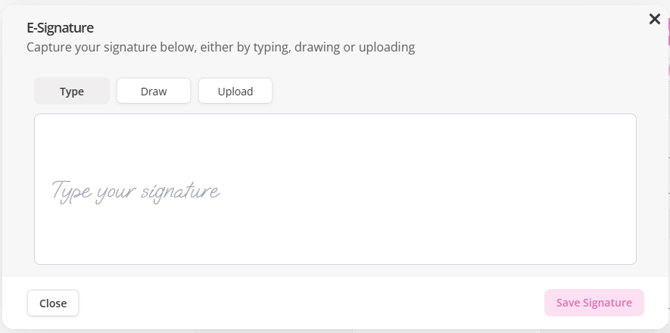
Click to add a signature to open the options to:
- Type your signature
- Draw your signature within the box provided
- Upload an image of your signature
Once the ticket has been saved or status updated through its workflow, then the signature field will show the name of the signee with a date stamp and ability to 'view' its snapshot.
Note: To view the specific time stamp then simply hover for the pop up to show.

View the Snapshot
Click the blue View text to open a snapshot of the ticket, this shows the information as at the point of signature. From the snapshot preview screen you can download the signed ticket or attach it as a linked file.
Replace or Remove Signature
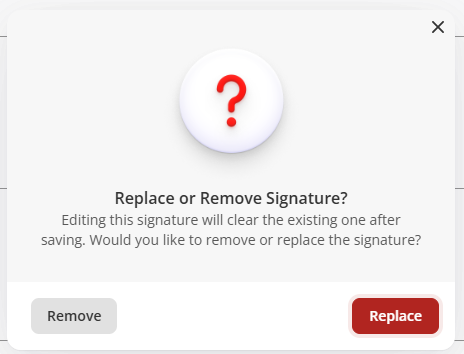
If the signature needs updating, edit the ticket as usual and click one of two options available to either remove the signature entirely or replace it. The ticket requires to be saved to update the snapshot and latest time date stamp.
- Remove completely wipes the signature, time date stamp and snapshot view
- Replace re-opens the box where you can re-type, draw or upload a new signature
FAQs:
Q: Can I batch add signatures from the list view?
A: No, from the batch edit screen the signature field will become unclickable to prevent signing items without thorough review.
Q: Can I add or edit signatures from the inline-editor mode?
A: No, if you are in editor mode to make bulk changes to items, you are unable to mass sign items to ensure checks are taking place and the intent to sign is clear.