![String Format.png]](https://support.fu3e.com/hs-fs/hubfs/String%20Format.png?height=26&name=String%20Format.png)
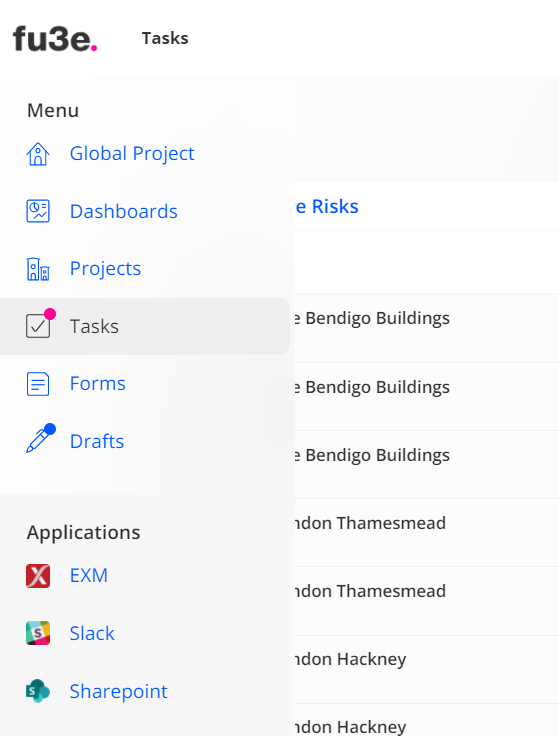
To find the tasks section, move the cursor to the left navigation bar and click on the tickbox icon. When a user has a task assigned to them, a coloured dot will display on the task icon.
Pink icon = Tasks overdue
Green icon = No tasks overdue
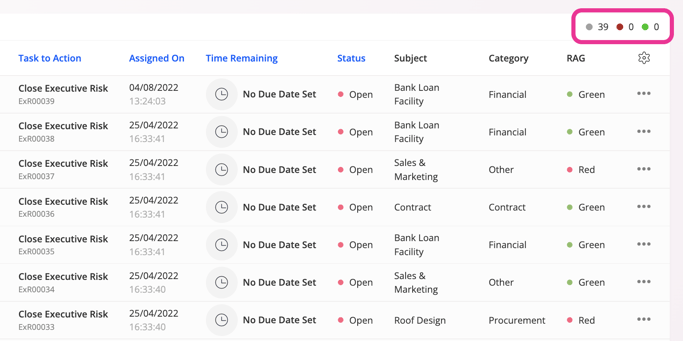
When viewing your tasks there are additional counters. These counters show the number of tasks in each status relative to when they're due:
- Grey - there is no time limit on these tasks
- Green - there is time remaining to complete these tasks
- Red - these tasks are overdue
The expected due date of a task can be seen at the top of the ticket and in the assignee's task list.