![String Format.png]](https://support.fu3e.com/hs-fs/hubfs/String%20Format.png?height=26&name=String%20Format.png)
This article walks through setting up an Excel workbook, as well as adding, editing and deleting files.
1. Navigate to the dashboard and click ‘Connect’ button in the top right corner.
The Microsoft account that you're signed in to will be linked to the fu3e account you are logged in to.

2. Once connected and signed in, you will be taken straight to the drive selector or manually click ‘Add excel’ to open the screen to select one of the below:
- Your OneDrive
- Files that have been shared with your account
- Any SharePoint sites, groups, teams and channels that you have access to
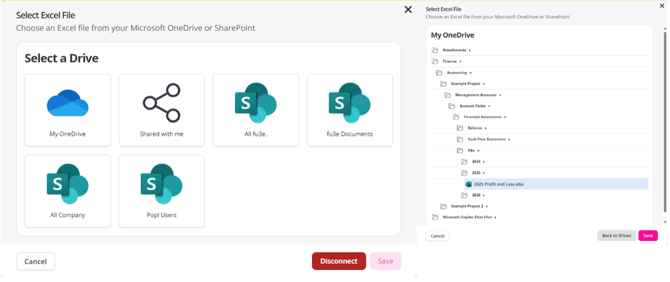
3. Select your excel file and click ‘Save’ to open the settings menu where you will have the options to:
- Select the entire Excel document or a certain range of one worksheet
- Select a starting cell from a worksheet
Note: Worksheet names and ranges are case-sensitive
- Customise the Excel workbook settings by hiding grid lines, column headers and row headers
- Changing how the file can be interacted with. Users can change the read-only state of the workbook, as well as activating sorting and filtering
Note: Any changes made to the interaction settings of your workbook within the fu3e dashboard will not be exported, such as sorting, filtering or editing data. Refresh the data on your dashboard before exporting to PDF to get the latest information.
.png?width=670&height=207&name=image%20(149).png)
4. Select preview at the bottom of the settings screen to include any live changes as you make them.
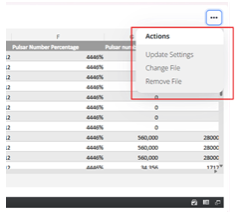
Note: Update these settings by hovering over an excel file and clicking the 3 dot menu. Click ‘Update Settings’ to re-open the screen or you can also change the current excel file uploaded or remove the file.
FAQS:
Q: Can I export a dashboard containing Excel workbooks?
A: Yes - click the 'Export' button to download a PDF version of the dashboards with Excel workbooks embedded. See the export support page to learn more information.
Q: Why does it say 'Approval Required?'
A: You require admin approval to allow you sign in, get in touch with your Microsoft Administrator to grant access.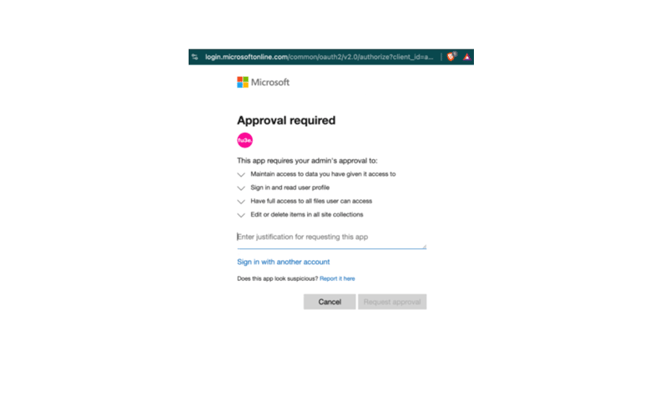
Q: How do I disconnect my Microsoft account from the dashboard?
A: To disconnect your Microsoft account from the dashboard, you will need to hover over the Excel workbook and select the ‘Change File’ option from the menu, then press disconnect.
Please make sure to check which files your account has uploaded, as they will be removed when you disconnect that Microsoft account. Your Microsoft account will also be unlinked from your fu3e account. When disconnected, you will still be able to see other files but will not be able to interact with them until you re-connect.
Q: Why does it ask me to choose between different Microsoft accounts?
A: If you have only ever used one Microsoft account within this browser, it will automatically sign you into this account
If you have signed into multiple Microsoft accounts before, it will present you with the option to choose between all accounts
Note: We recommend to always sign into your Microsoft account on office 365 before signing into Microsoft within Excel on a fu3e dashboard, and avoiding incognito windows where necessary.
Q: Can I make live changes?
A: You can make changes within the Excel workbook if you have permission, but the changes will not be saved to the workbook. Only updates made on the original Excel workbook will be visible in the dashboard when refreshing.
Q: What excel file types are supported?
A: We currently support 2 types of excel file: .xlsx and .xlsm.
Q: What if my account is deactivated?
A: If your Microsoft account is deactivated then your files will not be removed, just your account.
Q: Why is my named range valid but doesn’t show within the preview?
A: Sometimes a named range may have a broken reference, so it is a valid range within the fu3e settings but may not work within the Excel file. Please refer to your excel workbook.
Q: Can I view previous versions of my Excel workbooks?
A: You can view historical workbooks from previous days. To view a previous snapshot of your dashboard, please refer to the snapshot support page.
Note: If you have a download error then use yesterday’s snapshot to find out what file was previously there.