![String Format.png]](https://support.fu3e.com/hs-fs/hubfs/String%20Format.png?height=26&name=String%20Format.png)
The invite users button allows you to invite new users to a project or ticket, or add existing users to a project or ticket they do not yet have access to.
The options available will depend on permissions, project administrators and permitted team members can now:
- Invite external users via email to view, update, or create specific forms or tickets.
- Assign permission groups for fine-grained control, ensuring users only see and act on what you choose.
- Track and audit all invitations and permissions for complete transparency.
How to Invite New Users to a Project
The invite users feature allows you to invite new users to a form or invite existing users who to a ticket they do not yet have access to.
Use this process for easy Invitation, from a workflow step such as assigning a tender package simply enter their email address (you can add multiple users at once) to assign a ticket or task to a new user.
The options available to you may depend on your permissions, the project, the organisation, and the permission groups configured in fu3e.
Steps
1. Create a new ticket that you intend to share or assign, or open an existing ticket.
When updating the ticket through the workflow status, in the slide out you can select a user to assign the task or ticket to. 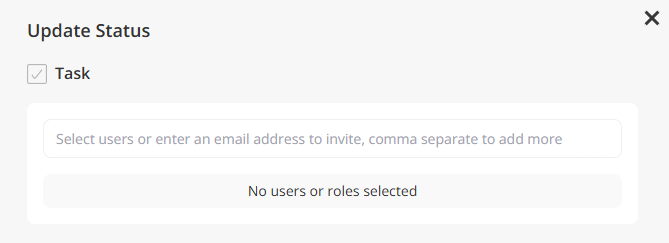
2. Enter the email address of the person you want to invite, use commas to add multiple email addresses then select Add. 
3. Review or complete the new user details to ensure the name, email address and organisation has been added. Click to send the invite and update the ticket status.
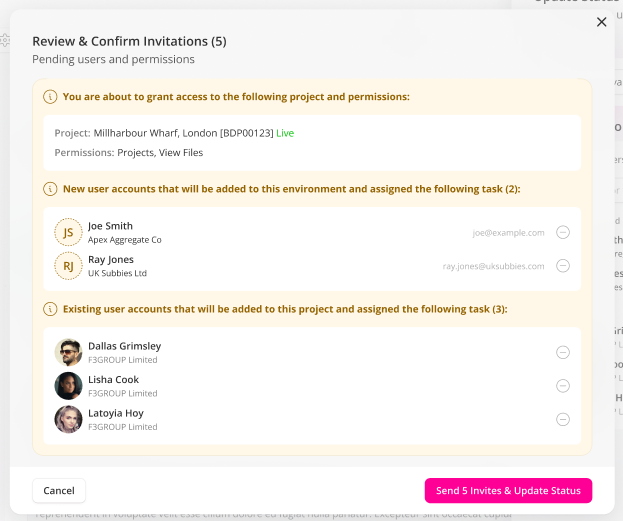
4. Once you click to confirm to send the invite and update the ticket status, then the invited user will appear in the 'Assigned To' section, with an invited status shown until they activate their account. The invited user will receive an invitation email to activate their account and be granted access to that ticket.
FAQs:
Q: Can I assign an exiting user to a ticket when they do not have ticket access?
A: Yes, follow the same steps as above but instead of adding a new email initiation, the user's existing name and organisation will be shown. Select the user and review the pop up to confirm details.
Q: Can I invite users the entire project?
A: Yes, see the details in the article to invite users to projects.
Q: Can invited users see all of the data and information?
A: No, when a user is invited to a ticket, they may only be able to see the ticket they have been assigned to, depending on their permissions.
Q: What does the Invited User receive when I send the invitation?
A: When a new user is invited, they receive an email inviting them to join the fu3e environment. The email includes an activation link to set a password then read and accept fu3e's user policy.
Q: Why are some organisations not available or greyed out?
A: There will be other projects or group permissions linked to them, which means they can only be assigned to users through the relevant administration areas.
Q: What are Permission Groups?
A: These are pre-defined settings to mange the access of users, you can add multiple permission groups and open the detail behind the settings by clicking the icon. 