![String Format.png]](https://support.fu3e.com/hs-fs/hubfs/String%20Format.png?height=26&name=String%20Format.png)
Create new users in bulk by importing a CSV file into fu3e.
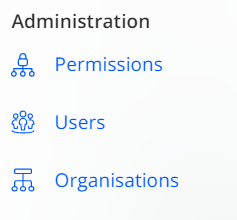
1. Navigate to the Administration Menu:
- On the left navigation bar, scroll down to the administration menu.
- Select the "Users" tab.
2. Select CSV file and Import:
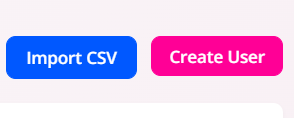
- Within the user list, click the 'Import CSV' button located above the list
- Select your CSV file for import.
3. Map Relevant Fields:
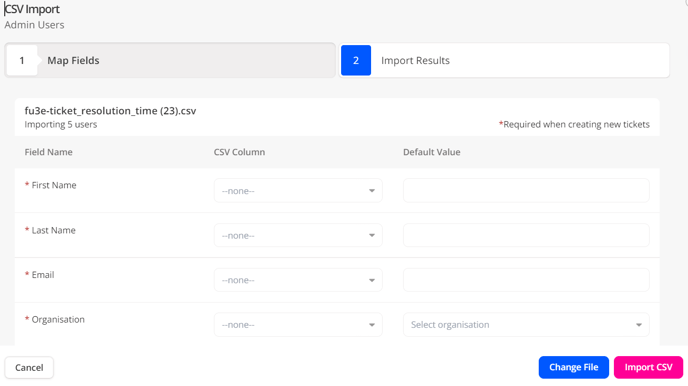
Within the import pop-up screen, map the columns from your CSV for the new user information.
- If the column headers in your CSV match the field names in fu3e, they will be auto-mapped
- Use the drop-down menus to select the appropriate fields
- Then click the 'Import CSV' button to begin the process.
By following these steps, you can efficiently upload and manage your data inside fu3e using CSV files.
.png?width=688&height=242&name=image%20(126).png)