![String Format.png]](https://support.fu3e.com/hs-fs/hubfs/String%20Format.png?height=26&name=String%20Format.png)
Efficiently link or upload files to several tickets at once from a project’s ticket list, saving you time and ensuring all relevant documentation is attached where required.
When to use this:
- When you have supporting documents (e.g., delivery notes, correspondence, images) that need to be attached to multiple tickets, such as call-off or order tracker tickets
- When you wish to update several tickets in one go, rather than uploading the same file to each ticket individually
1. Navigate to the Project Ticket List
- Open your desired project and open the ticket list for the relevant form
(e.g., "Material Order Tracker")
2. Select Tickets
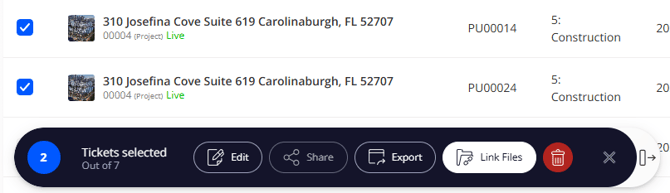
- Use the checkboxes to select one or more tickets to add or link files
Note: The batch action to 'Link Files' is only available when all selected tickets are from the same project.
3. Linking or Uploading Files
-
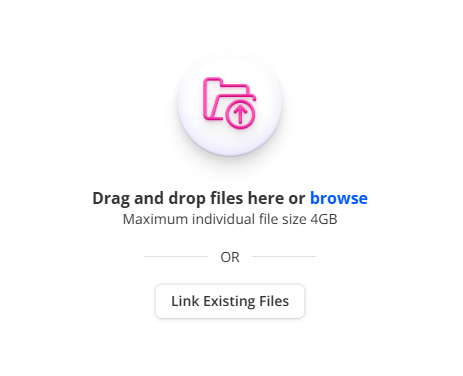
Once tickets are selected, and 'Link Files' has been clicked, you will have the option to either:
- Upload new files from your device using the drag and drop or click 'browse'
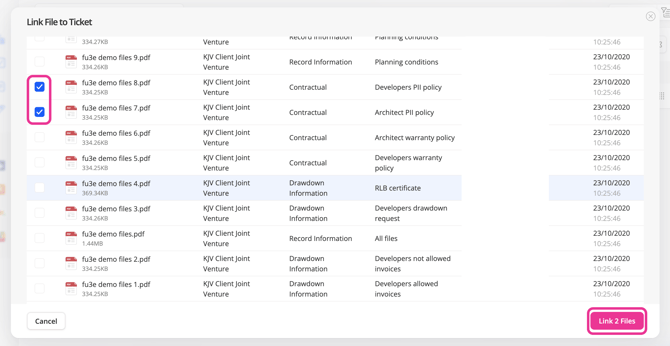
- Link Existing Files to use files already uploaded to a project
4. Attach the Files to the Tickets Selected
-
- If uploading, you can drag-and-drop files into the upload area, or use the file picker to select files from your device
- For linking existing files, browse and select from your project’s file list
- Click to confirm your selection. Files will be attached to all selected tickets