![String Format.png]](https://support.fu3e.com/hs-fs/hubfs/String%20Format.png?height=26&name=String%20Format.png)
How to Build Your Report
This guide explains how to add files and forms from across your portfolio to a report. You'll learn how to search, filter, and select content from multiple projects to create comprehensive reports tailored to your requirements.
1. Access Business Plan Template
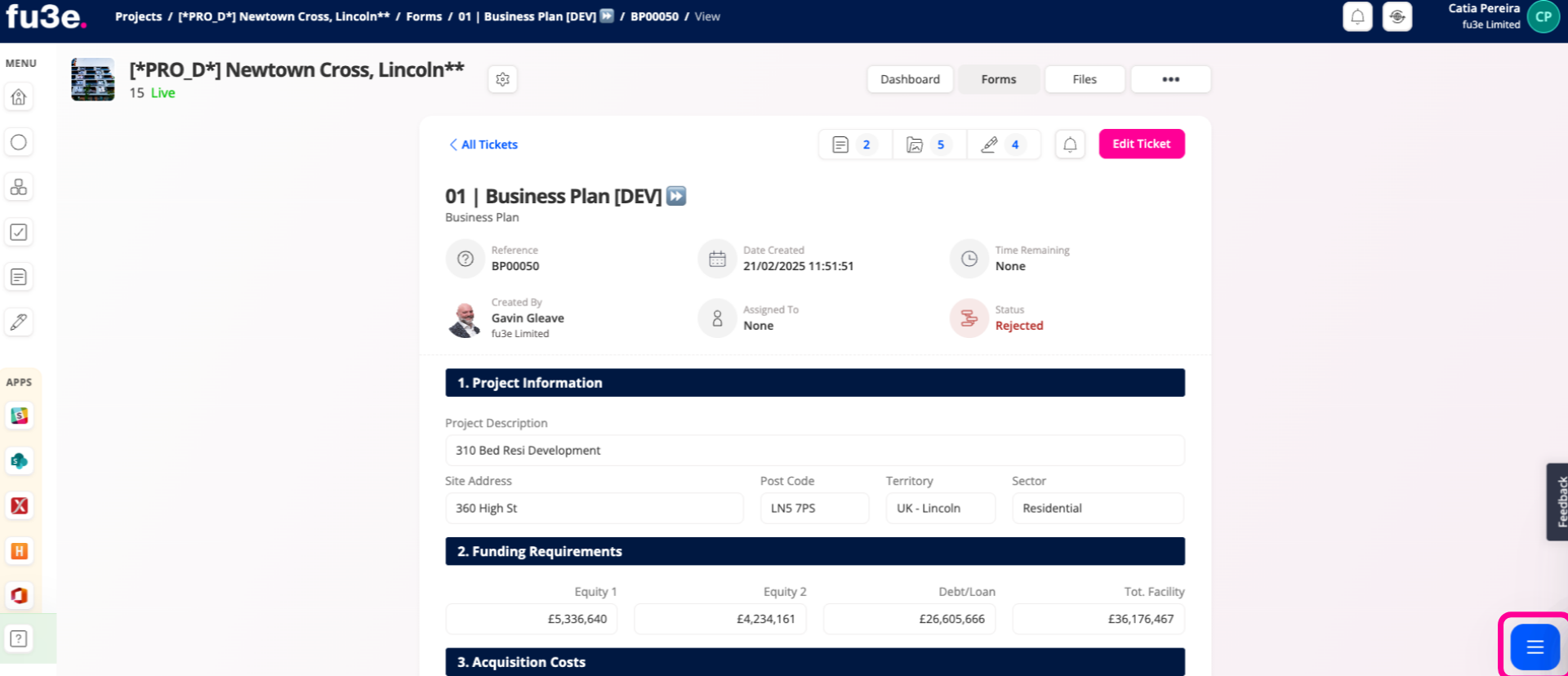
From the ticket view screen, click the blue square button on the bottom right of the screen to open action options.
2. Open Report Builder Feature
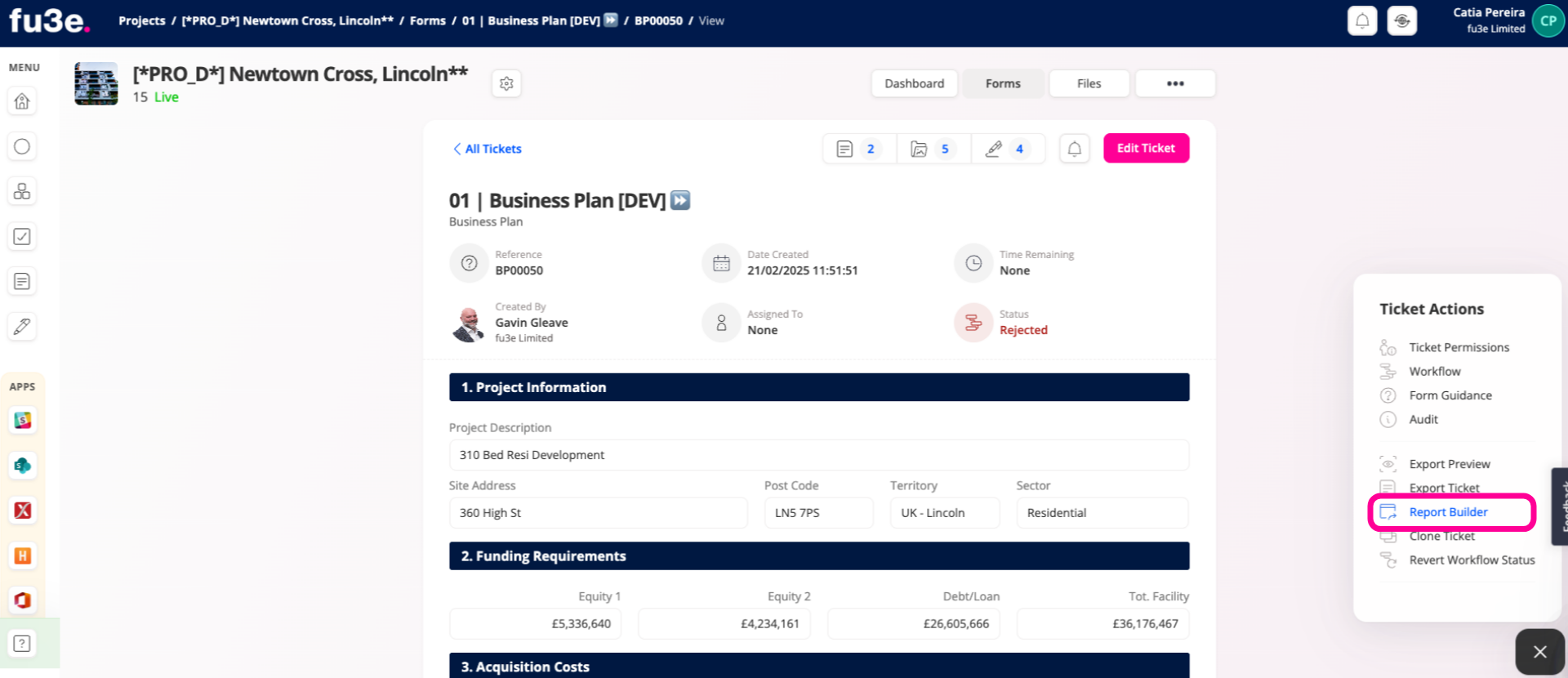
Click Report Builder to open the configuration screen,
3. Add Cover sheet
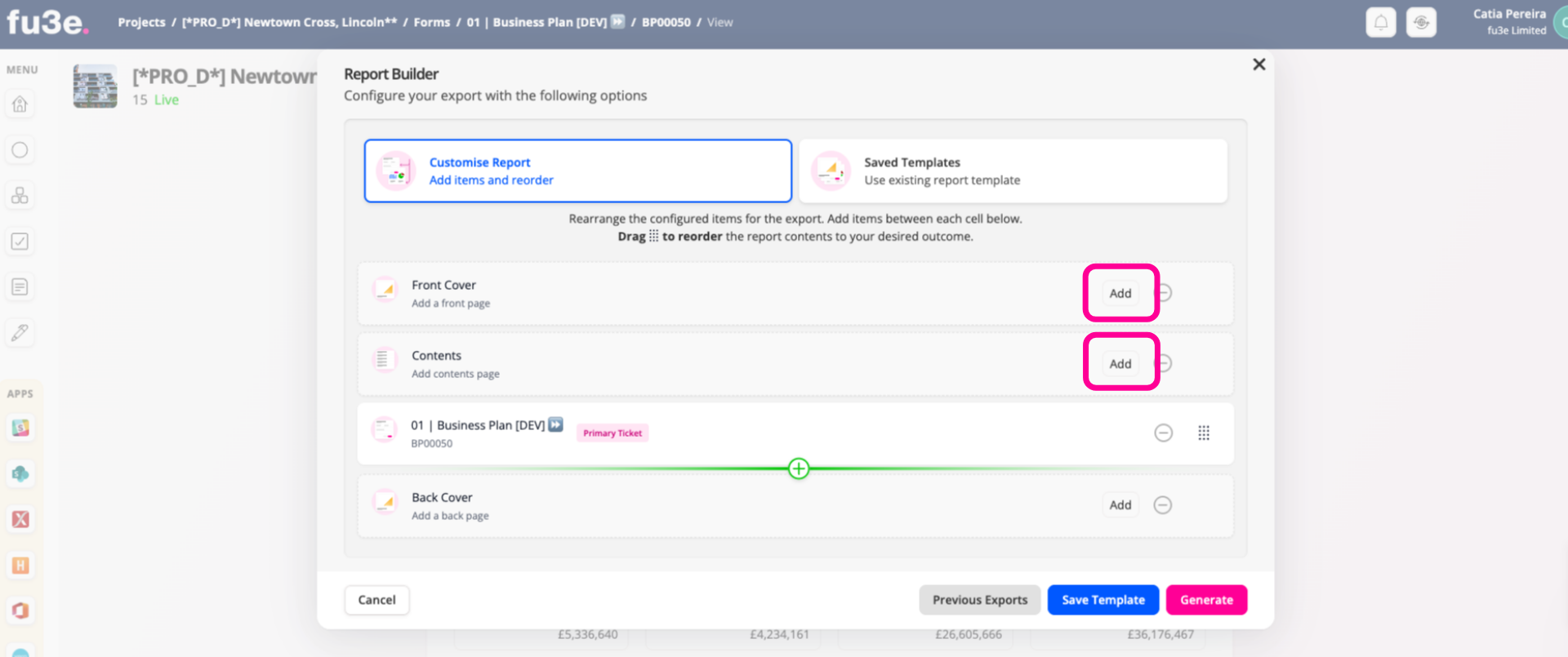
From here you can 'Add' a Front Cover, table of contents and Cover Sheet sections.
4. Build the Report
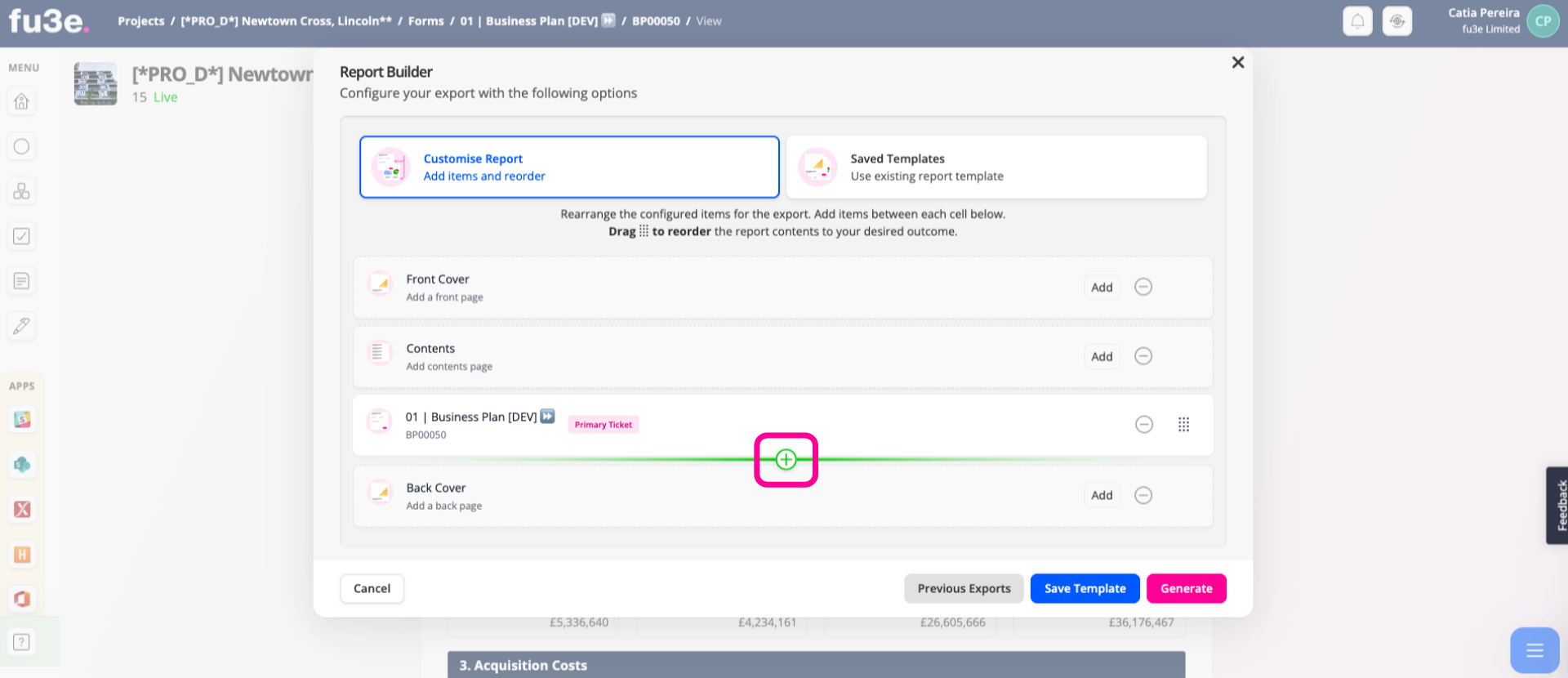
Hover over the required section, then click the (+) icon to add modules to start adding content and building your report.
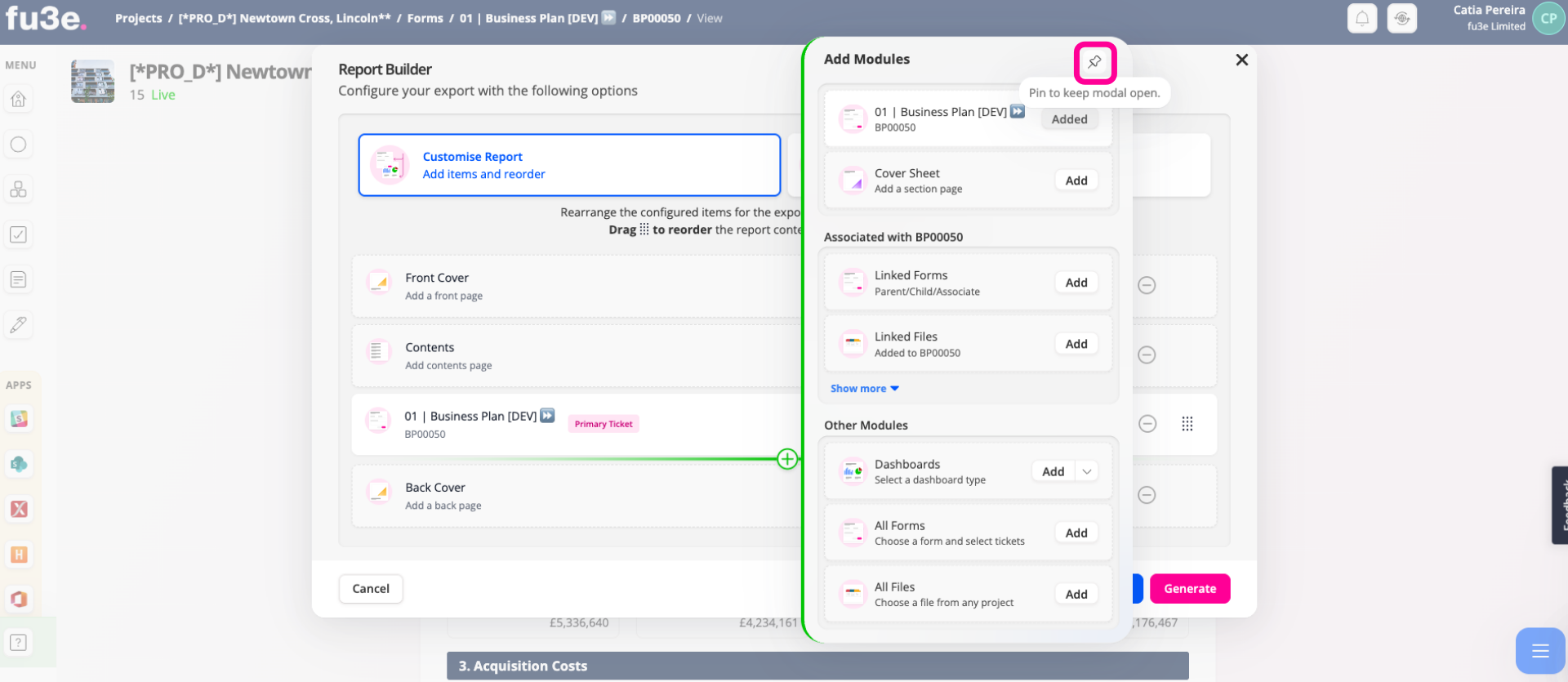
5. Pin the Module Screen
If you'd like to keep this panel visible, click the pin icon in the top right.
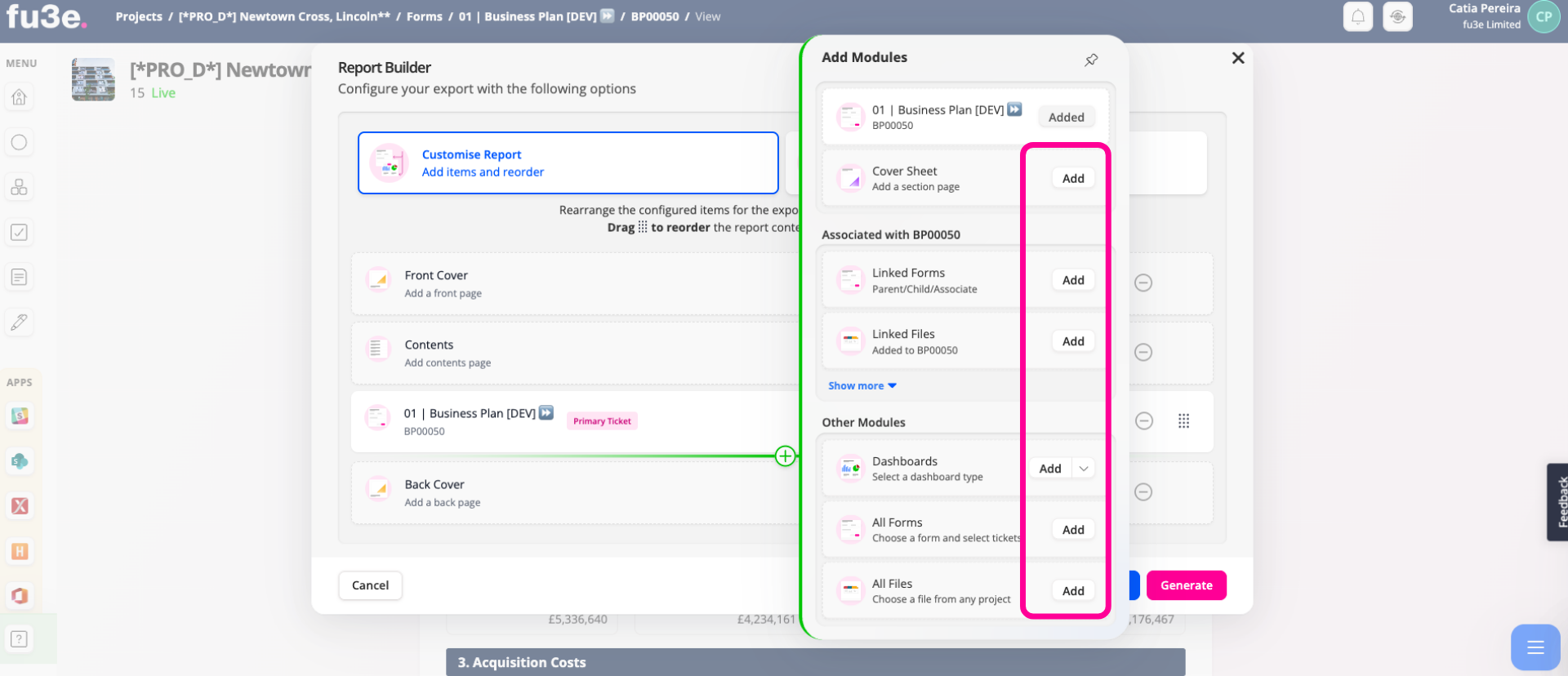
6. Add New Report Element
Click "Add" to include new elements or sections into your report structure.
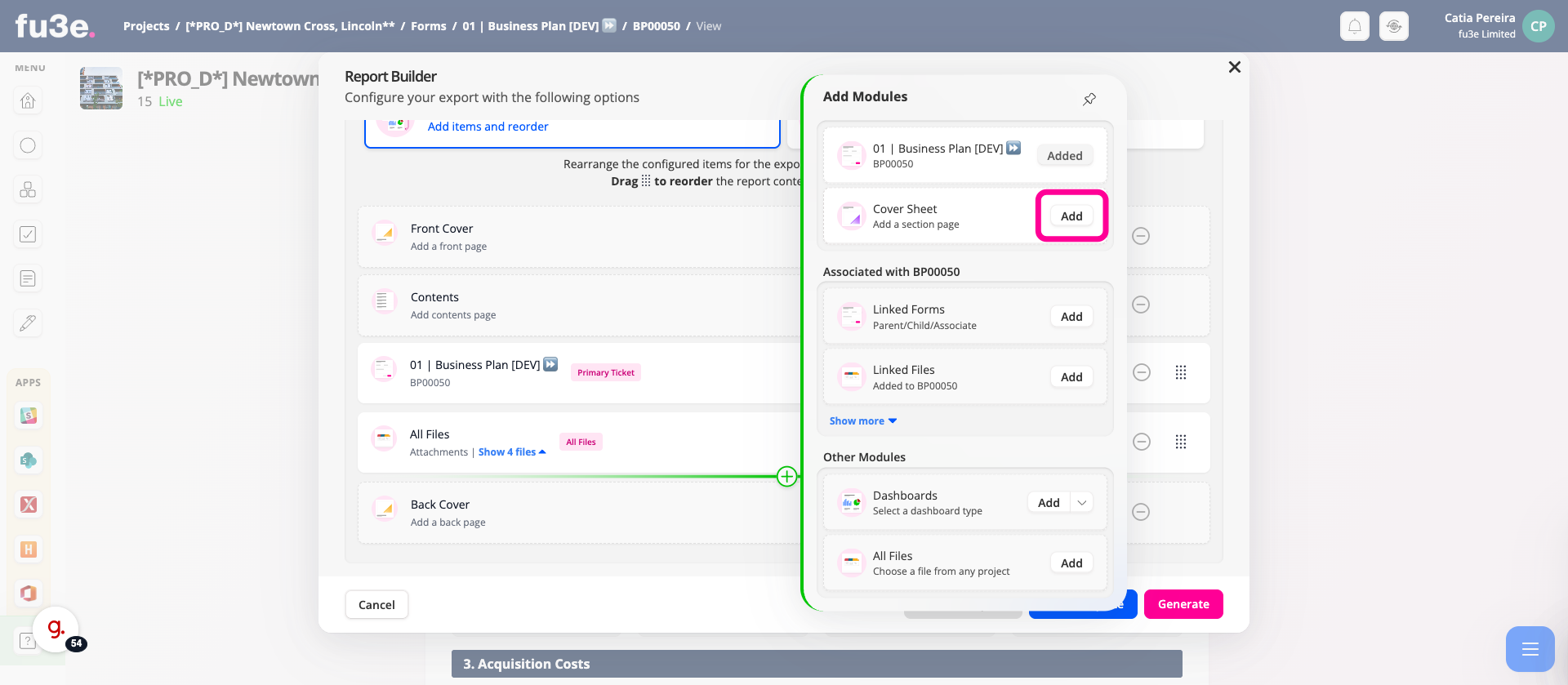
7. Insert Cover Sheet Element
Select Add to include a Cover Sheet, creating separate sections within your report and allowing you to customise the text, styling, and images for each section.
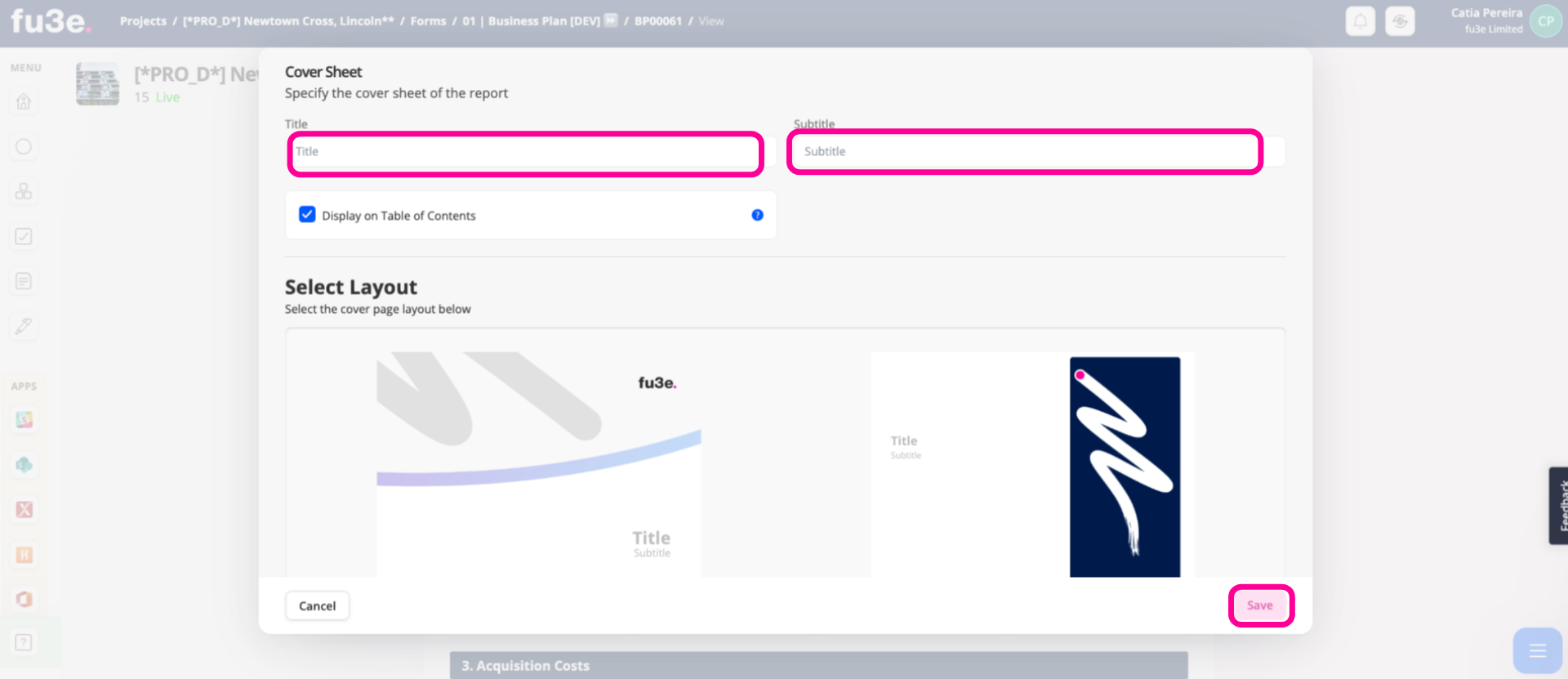
8. Cancel Current Action
Complete the title and subject fields, choose a cover page layout, and then press Save to continue.
9. Generate Report
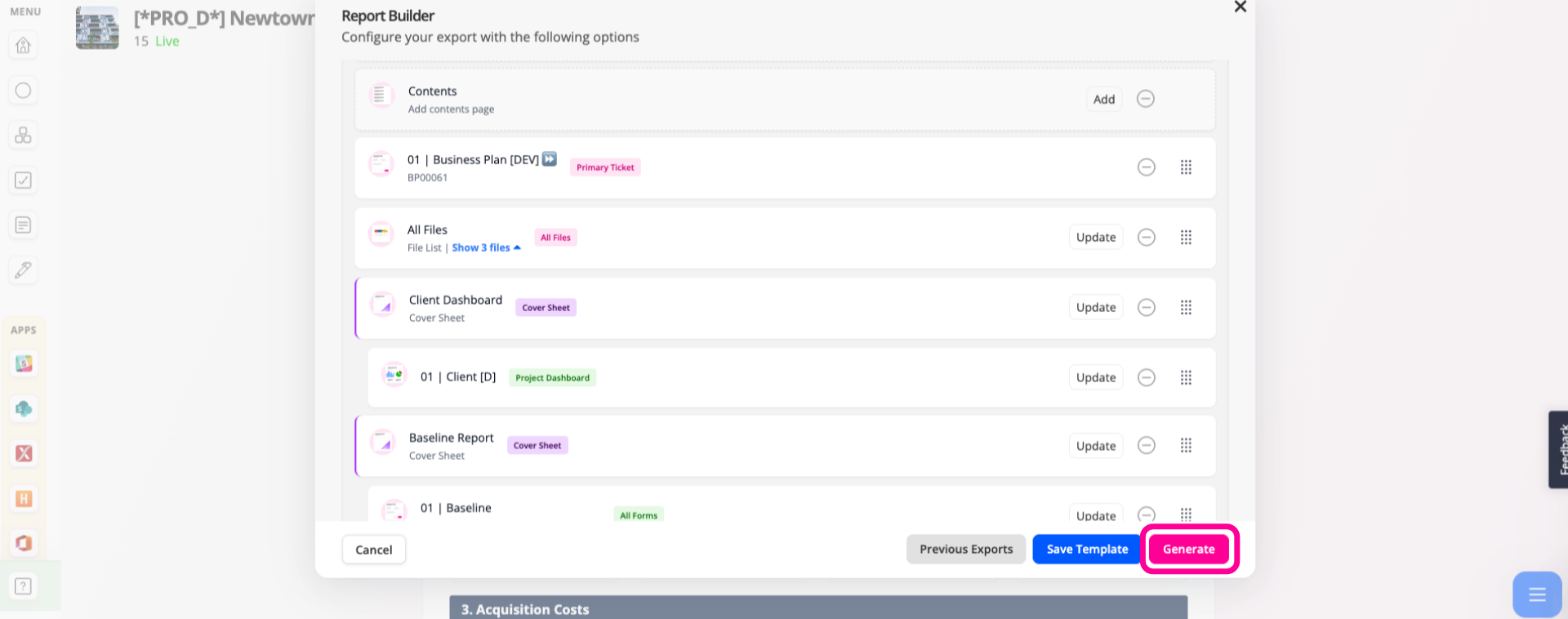
Click Generate to create a preview of the PDF. Please allow a moment for larger reports to load.
10.
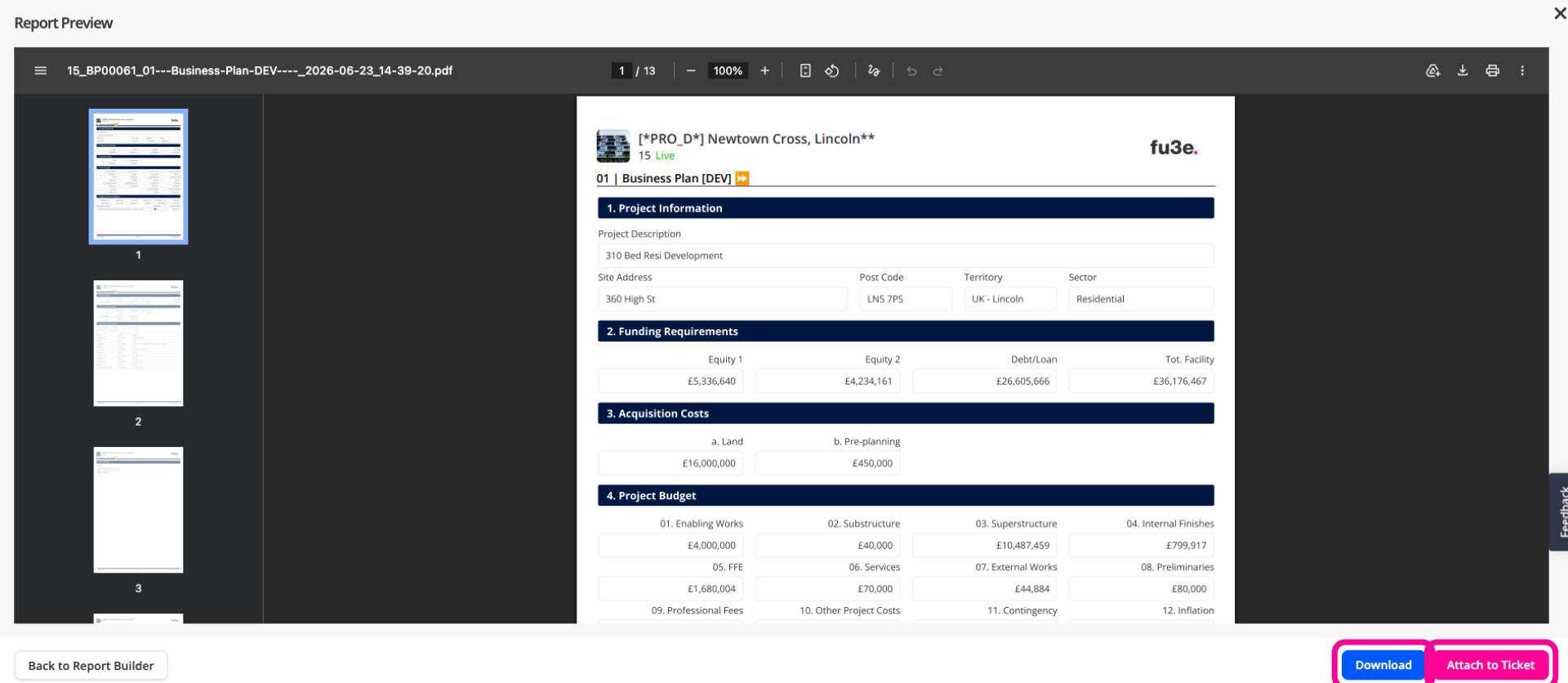
You can download your report or attach the PDF copy to the main ticket.
11.
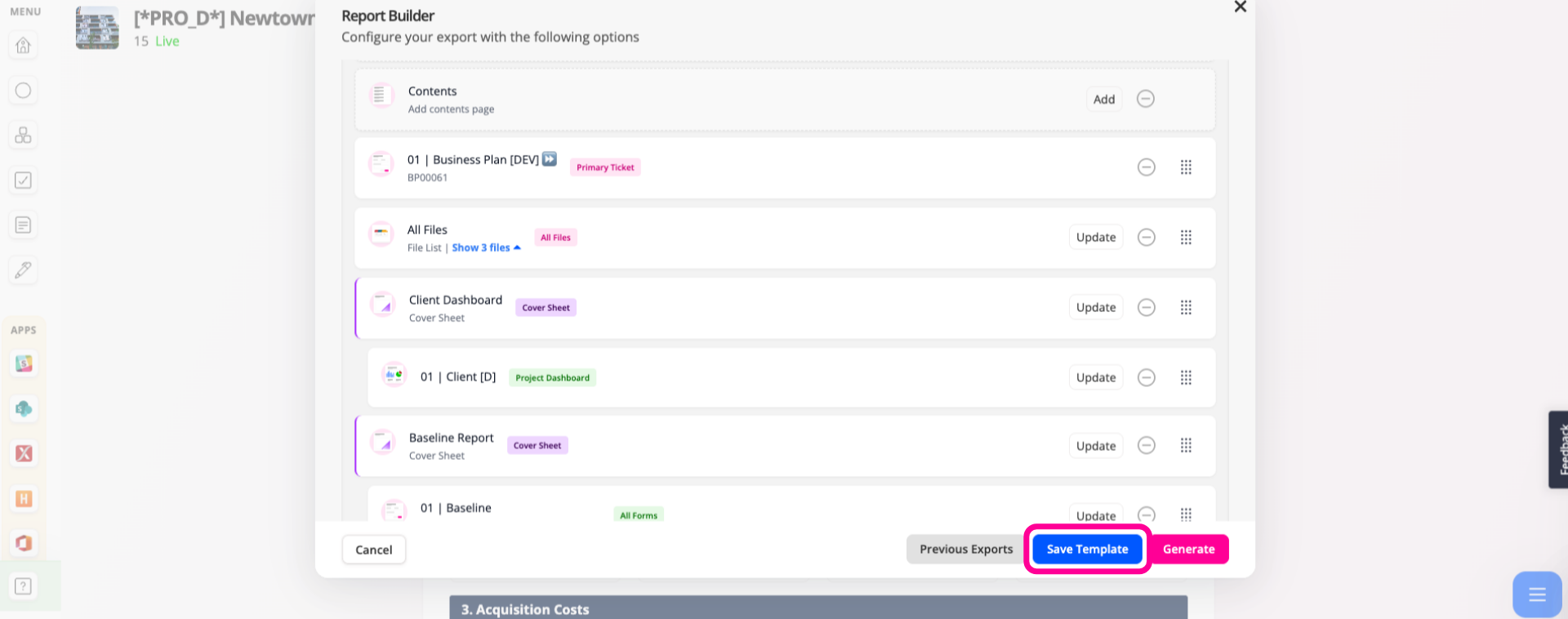
Once you close the previous screen, you can save this setup as a template to quickly reuse the same report configuration next time.
Using the fu3e Report Builder, you can quickly create comprehensive reports by bringing together content from across your portfolio, helping to streamline and standardise your reporting process.