Skip to content
English
  • There are no suggestions because the search field is empty.

Error Handling with Excel Integration

This article is designed to help support with errors and provide more detail and guidance with how best to resolve and troubleshoot. It is likely most issues will be resolved with a refresh or press F5 on your keypad.


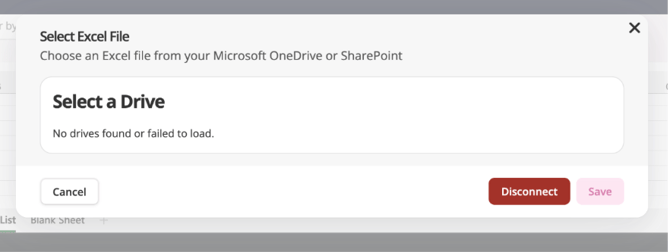
  • What if my OneDrive or SharePoint drives fail to load? 

Please close the select drive screen and attempt to add the file again. If this problem persists, there may be a problem with your Microsoft account 
 

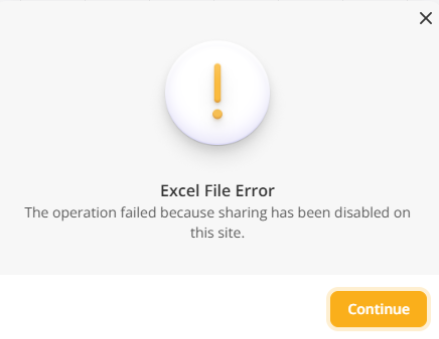
    • Why am I getting Excel File Error? 
    This means that sharing for the file you are uploading needs to be enabled. Please enable sharing within your file or speak with your Microsoft Administrator for further information. 

    A screen shot of a computer error

AI-generated content may be incorrect.


    • Why can’t I connect to Microsoft to add an Excel workbook?  

    This Microsoft error will sometimes occur when signing in, please close the window and try connecting again. 


    • Why is my named range not showing in the preview?
    Sometimes a named range may reference a hidden sheet or have a broken reference, so it is a valid range, but may not work. Please refer to your excel file.


    • What happens if my file is moved or deleted in OneDrive or SharePoint whilst uploaded to fu3e?  
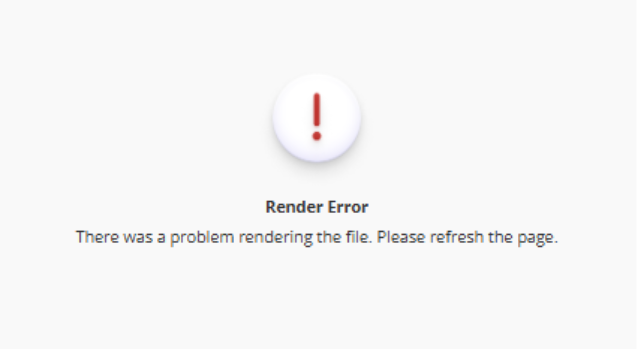
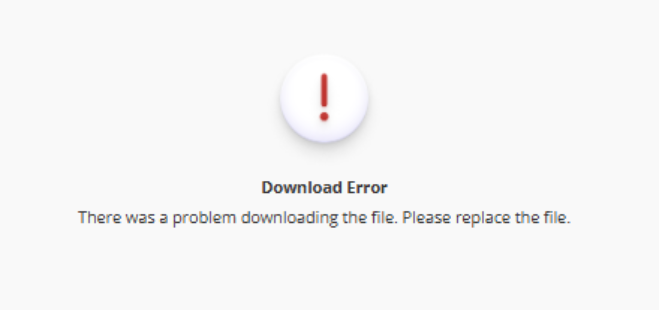
    When an Excel workbook is moved to a different location or deleted, there will be either a render error or a download message shown. Please follow the instructions on the error to fix the issue. If the problem persists, please contact support. 


    A white circle with red exclamation mark on it

AI-generated content may be incorrect.

    A white circle with red exclamation mark on it

AI-generated content may be incorrect.