![String Format.png]](https://support.fu3e.com/hs-fs/hubfs/String%20Format.png?height=26&name=String%20Format.png)
Steps to follow:
- Hover over the left panel and click on the Organisations icon which sits under the Administration section.
2. Batch Action Bar
From the organisation list you can batch select by clicking the checkboxes next to the organisations and a batch action bar will pop up.
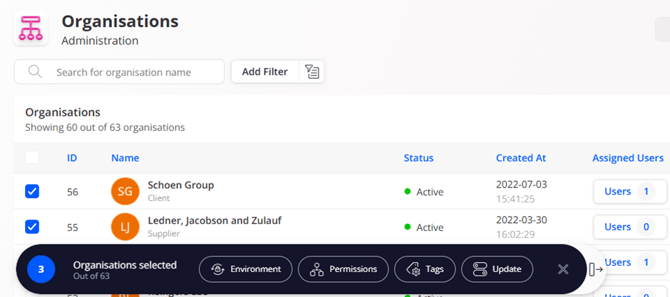
Within the bar there are four buttons where you can click to make bulk changes for the below:
Environment – add or remove access to specific global dashboards or site wide functionality.
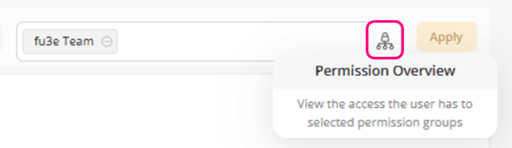
Permissions – bulk add or remove the permissions for projects or groups. Click the icon to open the permissions overview that highlights the detail behind the permissions, and what it means in terms of access to dashboards, forms, files and projects or groups.
Tags – custom labels created to separate an organisation into specific project roles, such as Project Manager, Investor, Client or Supplier. This label or tag is shown when sharing files to the entire organisation.
Update - change the status of the organisation to either active or inactive, from here you can also change the type of organisation from the drop-down options available.
3. Batch Update Environment
From the batch action bar you can batch add or remove Environment Access from the organisations selected. This is often used to create roles to separate access to global Dashboards, dashboard snapshots or access to ai.
Add Access to Organisations:
- To add Environment Access to Organisations, from this screen you can see different environment access roles. Select those you would like to add using the checkboxes then click Save & Add to apply changes.
Remove Access to Organisations:
- To Remove Access to Organisations, from this screen you can see different environment access roles. Select which Environment you would like to remove using the checkboxes then click Save & Remove to remove selections.
4. Batch Update Permissions
From the batch action bar you can batch add or remove permissions from the organisations selected.
Add Group/Projects Permission:
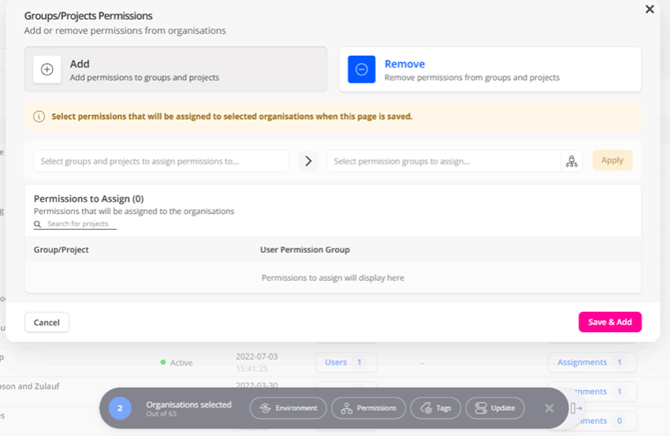
- To Add, select the Groups and/or Projects where these permissions will relate to, then assign the permission groups from the dropdown options.
Once you’ve added a Permission Group, you can click on the Permission Overview icon to pop open a new screen which shows more detail.
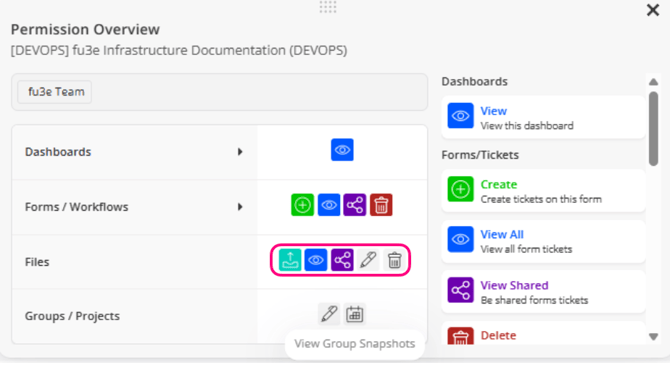
This Key will highlight the different levels of access such as view, create, edit or delete for the various dashboards, forms, files and projects.
Any greyed-out icons will mean they are not active and do not apply.
In the below example, it shows ‘fu3e Team’ as the Permission Group. Any Organisations belonging to this group will be able to view Dashboards.
Note: Click to open the dashboard section to list out the relevant dashboards.
The below example also shows that this Permission Group allows you to upload files, view and share but does not allow you to edit or delete files.
To Save and Add the changes, you’ll notice the Apply button becomes active once you’ve assigned a Permission, and the Project it relates to.
Click the Apply button which adds to the section below then select Save & Add to apply the changes.

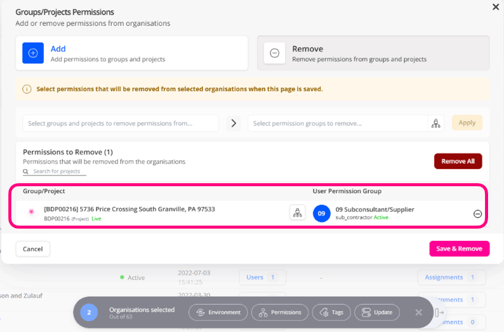
- The purpose of this section is to show all the projects, groups and permission groups where your changes will be applied.
- Within this view you can also search for specific projects, remove all your changes, remove individual changes or click the Permissions Overview icon to pop open the specific details relating to those Project Permissions.
Remove Group/Projects permission:
- To Remove, select Projects and/or Groups this will affect then select the relevant Permissions to remove.
- Once you’ve clicked Appy, they will be added to the section below for a final review before selecting Save & Remove to apply the changes.
5. Batch Update Tags
Click the Tag button on the batch action bar to bulk add or remove custom labels relating to the organisation. Tags can specific business or project roles, such as Consultant, Architect or Engineer. 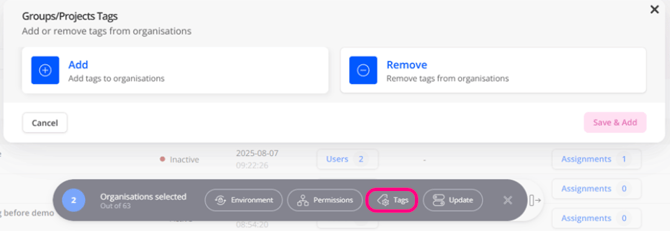
Once you have selected the relevant project or group, pick the tag from the drop down option then click the Assign button to add to the section below.
The purpose of this section is to review the changes before clicking to either Save and Add or Save and Remove.
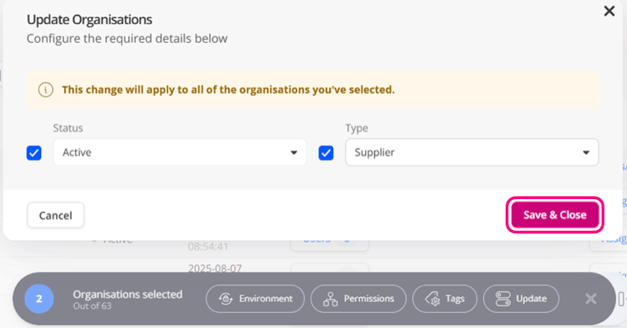
6. Batch Update Organisation StatusFrom the organisations list, you can multiple select using the checkboxes to open the batch action bar and click Update. Within this screen, you can change the organisation status to active or inactive, and you batch update the type of organisation from the drop-down options. Click Save & Close to apply the changes.